
This guide is for the Member Portal only. The Resource Centre and PD Login buttons at the top of this website have their own sign-in pages, which work differently.
- Portal addressresource-centre.blc-fe.org
- What you needYour work email at a BLC member college, and access to that inbox
- How long it takesAbout a minute. The emailed link works for 15 minutes.
Signing in, step by step
-
Open the portal and choose Sign in
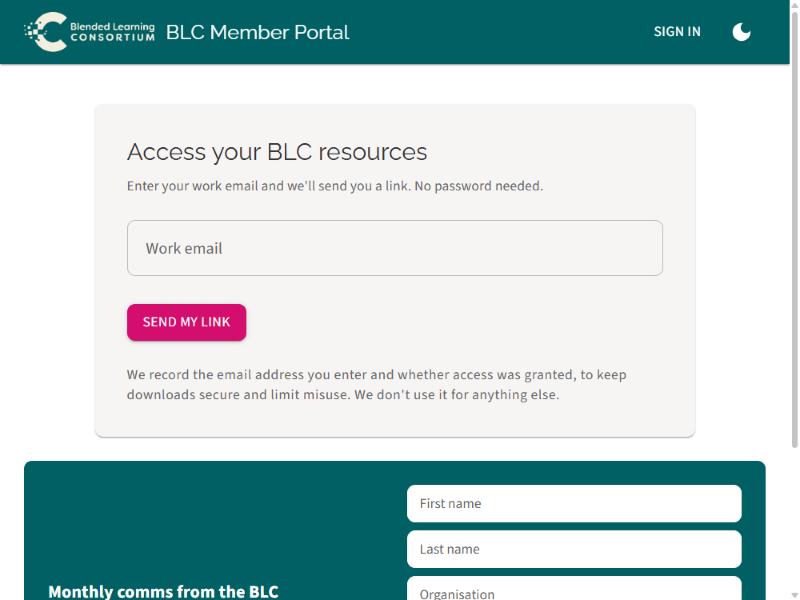
Go to resource-centre.blc-fe.org and select SIGN IN at the top right. You will see the Access your BLC resources page.
-
Enter your work email and select Send my link
Use the address your college gave you, not a personal one. The portal uses the part after the @ to work out which college you are from, and so which sessions you can open.
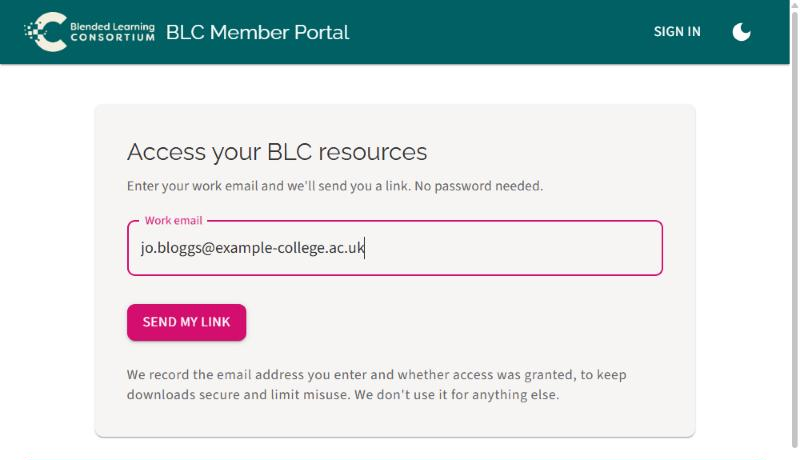
The address shown is an example. -
Check your email
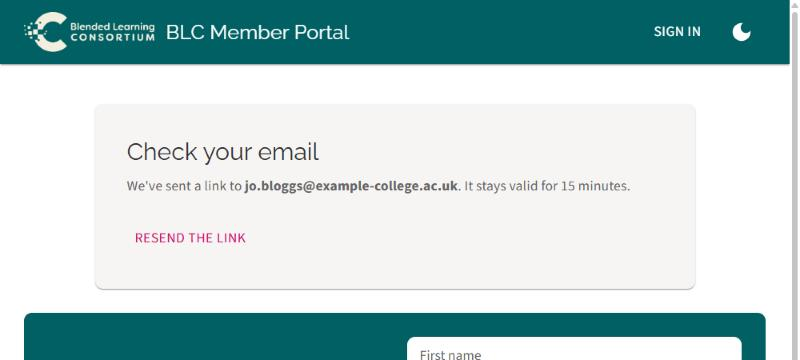
The page changes to Check your email and shows the address we sent the link to. Leave this tab open and go to your inbox.
-
Open the email and select the link
Look for an email from BLC Resources with the subject Your BLC resources access link. Select the link in it within 15 minutes.
- From
- BLC Resources <info@blc-fe.org>
- Subject
- Your BLC resources access link
Hello,
Here is your access link for the BLC resource catalogue:
https://resource-centre.blc-fe.org/access/redeem?token=…
The link is tied to this email address (jo.bloggs@example-college.ac.uk) and stays valid for about 15 minutes. Once you've opened it you'll stay signed in on this device for two weeks.
If you didn't request this, you can safely ignore this email.
BLC
Tip: open the link on the same computer and in the same browser you want to use the portal in. You stay signed in on that browser, not on every device.
Link not working? Your email program or browser may warn that it can't check the safety of the site, or the link may not take you to the portal. If so, copy the whole link from the email and paste it into your browser's address bar instead.
-
You're in
The link brings you to the library. Your college's name appears at the top right, and the library shows the sessions your college holds. From here you can search, browse subjects A to Z, or start with the latest releases.
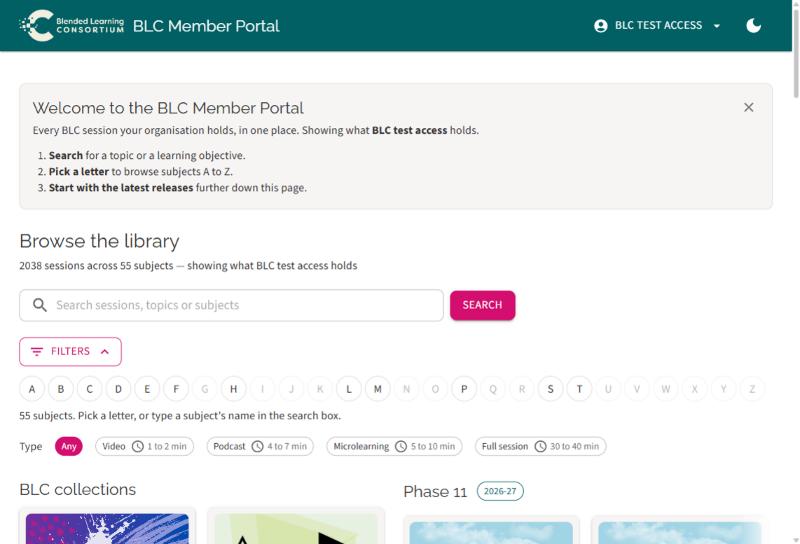
This screenshot was taken with a test account, so it shows "BLC test access" where you will see your college's name. You stay signed in on that browser for two weeks. After that, sign in again the same way.
Signing out
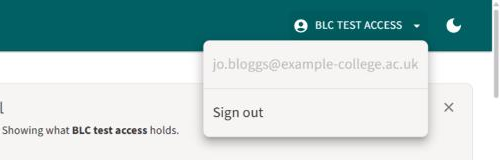
Select your college's name at the top right, then Sign out. The menu also shows the email address you are signed in with. Sign out if you are on a shared computer.
If something goes wrong
The email hasn't arrived
- Wait a couple of minutes. College mail filters sometimes hold new messages briefly.
- Check your junk or spam folder for an email from info@blc-fe.org.
- Check the address on the Check your email page is spelled correctly. If it isn't, go back to the sign-in page and enter it again.
- Select RESEND THE LINK to send a fresh one.
- If it still doesn't come, ask your college IT team to allow email from info@blc-fe.org.
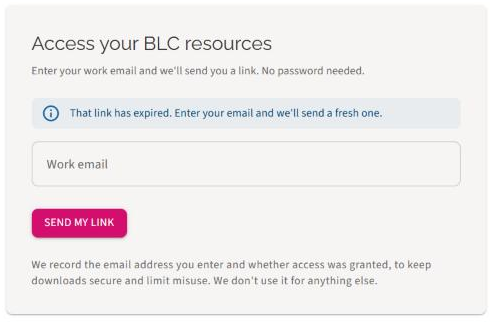
"That link has expired"
Each link works for 15 minutes. If you open it later, you'll be taken back to the sign-in page with this message. Enter your email again and use the new link.
"We don't recognise that email"
This means the address you entered isn't linked to a BLC member college. Usually a personal address (Gmail, Outlook.com and similar) was used, or your college has more than one email domain and only one is registered with BLC.
- Select Try another email and enter your college work address.
- If you are using your work address and still see this, contact us and tell us your college and the address you used.
"Too many requests"
To keep the portal secure, it limits how many links one address can ask for in a short time. Wait a few minutes, then try again. The last link we sent you will still work if it is less than 15 minutes old.
A session says "Sign in to preview"
You can browse the library without signing in, but most previews, and all downloads, need you to be signed in. Select the button and follow the steps above. Once you've signed in, the portal takes you back to the session you were looking at.
Still stuck? Contact the BLC team. When you sign in, the portal records the email address you enter and whether access was granted, to keep downloads secure. See our privacy notice.